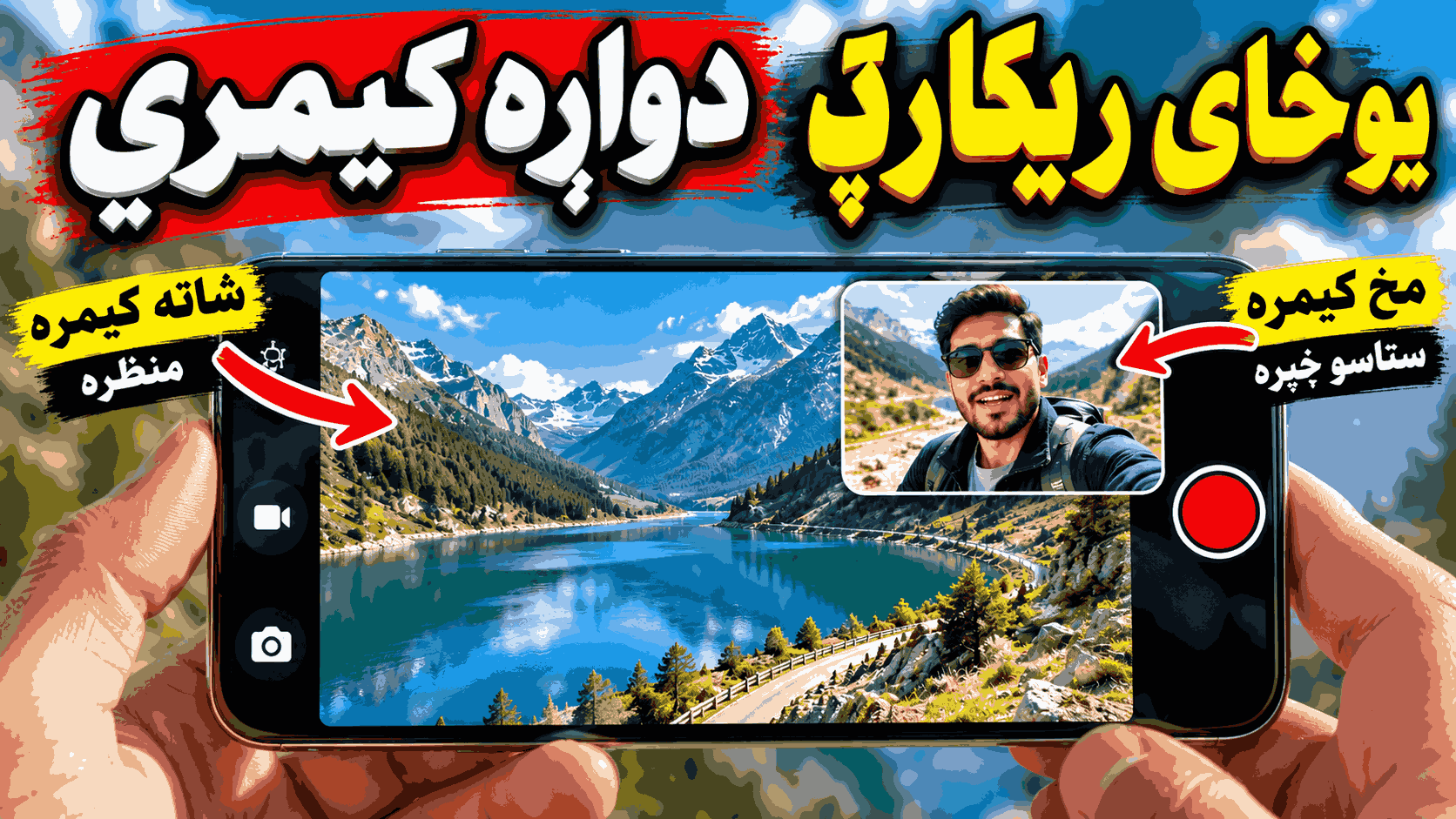
Camera Dual Shot Recording: How to Record With Two Cameras
Camera dual shot recording lets you capture two perspectives at the same time, usually by recording with your phone’s front and rear cameras together. Instead of choosing between filming the scene and showing your own reaction, you can capture both in one recording. This feature is useful for vloggers, travelers, reviewers, interviewers, and anyone who creates videos using a smartphone.
Dual camera recording is available on certain smartphones and through compatible camera apps. However, the available modes, video quality, and supported camera combinations depend on your phone’s hardware and software. This guide explains how it works, how to use it, and what to check if the feature is missing.
Quick Answer: What Is Camera Dual Shot Recording?
Camera dual shot recording is a video feature that captures footage from two cameras simultaneously. The most common setup uses the rear camera to film the surroundings and the front camera to record the person filming. The two views can appear together in a split-screen layout, a picture-in-picture window, or separate video files, depending on the device and app.
- Main purpose: Record two viewpoints at once.
- Common setup: Front and rear cameras.
- Typical layouts: Picture-in-picture and split screen.
- Best for: Vlogs, reactions, travel videos, tutorials, and interviews.
- Main requirement: A compatible phone or camera app.
What Is Dual Shot Recording?
Dual shot recording, also called dual camera recording or dual recording, captures two camera feeds during the same recording session. For example, you can point your rear camera at a scenic location while the front camera records your reaction. The result can show both views in one video.
Some phones also support recording from two rear camera lenses, such as a wide-angle camera and a telephoto camera. This capability is different from ordinary video recording, where you generally select one camera at a time.
Samsung uses the name Dual Recording or Dual Rec for this feature on supported Galaxy devices. Other manufacturers and third-party applications may use different names, so the exact menu option can vary.
How Does Dual Camera Recording Work?
A compatible phone activates two camera streams and processes them together. The camera application then presents the footage in a selected layout or saves the recordings as separate files if that option is supported.
Picture-in-Picture Recording
Picture-in-picture, often shortened to PiP, places a smaller camera view inside the main video. For example, the rear camera can occupy most of the screen while a smaller front-camera window displays your face. Some applications let you move or resize the smaller window.
Split-Screen Recording
Split-screen recording divides the video frame into two sections. One section displays the front camera and the other shows the rear camera. This layout is useful when both viewpoints need similar visual importance.
Separate Camera Files
Some devices and apps can save the front-camera and rear-camera footage separately, as well as offering a combined view. Separate files provide more flexibility when editing the final video. Check the app’s recording settings because this option is not available everywhere.
Main Features of Dual Shot Recording
1. Simultaneous Front and Rear Camera Capture
Record your face and the scene in front of you during the same take. This helps preserve reactions and commentary without needing a second phone.
2. Flexible Video Layouts
Depending on the application, you may be able to choose a picture-in-picture view, a vertical split, or a horizontal split. Select a layout that suits the platform where you plan to publish your video.
3. Easier Vlogging
Dual recording makes it easier to create walking tours, travel diaries, product demonstrations, and behind-the-scenes videos. You can show the subject and your response without recording separate takes.
4. Flexible Editing
Compatible applications may offer cropping, trimming, layout adjustment, or separate camera files. The available editing features depend on the app and device.
5. Multiple Camera Combinations
On selected phones, dual recording can use the front and rear cameras or two rear lenses. Do not assume that every phone with multiple lenses supports simultaneous recording.
How to Use Dual Shot Recording on a Samsung Galaxy Phone
The exact steps depend on your Galaxy model and One UI version. On supported devices, Samsung provides a Dual Recording or Dual Rec mode inside the Camera app.
- Open the Camera app. Use the camera application installed on your Galaxy phone.
- Select Video mode. Move to the video recording interface.
- Open Quick Controls. Tap the quick controls icon if your camera interface provides one.
- Select Dual Recording. Look for the Dual Rec icon or the corresponding option. On some models, it may be listed under More.
- Choose a layout. Select picture-in-picture or split-screen if these options are available.
- Check both camera views. Make sure your face and the scene are framed correctly.
- Start recording. Tap the record button and capture both perspectives.
- Stop and review. Open Gallery to check the saved video and confirm that the result meets your needs.
Samsung has changed the location of some camera modes between software versions. Its support documentation explains that, on supported devices running One UI 8.5, Dual Rec can be accessed through the Video menu’s quick controls. Some devices also allow it to be enabled as a separate mode through Camera Assistant.
Official instructions: Samsung’s guide to finding Dual Recording.
How to Record With Two Cameras on Other Android Phones
If your phone does not offer a built-in dual recording mode, you can look for a compatible third-party camera application on Google Play. Before installing one, confirm that it supports your Android version and phone hardware.
- Open Google Play and search for a dual camera recorder.
- Read the app description to confirm that it records both cameras simultaneously, rather than simply combining two videos later.
- Check the Android version and concurrent-camera compatibility requirements.
- Review the developer’s privacy policy and requested permissions.
- Install the app from a trusted source and grant camera and microphone permissions when needed.
- Choose the front-and-back recording mode and select your preferred layout.
- Record a short test clip before creating a longer video.
For example, DualCam: Dual Camera Recorder on Google Play describes simultaneous recording modes and device compatibility requirements. Features and pricing can change, so review the current listing before installing it.
Best Uses for Camera Dual Shot Recording
- YouTube vlogs: Show the location while keeping your face and commentary visible.
- Travel videos: Capture a landmark and your reaction in the same take.
- Reaction videos: Record your response alongside a scene you are filming, provided you have the right to record and use the content.
- Product reviews: Show a product with the rear camera while explaining it to viewers.
- Tutorials: Demonstrate an activity while providing a live explanation.
- Interviews: Capture two perspectives when the camera arrangement and recording setup allow it.
- Social media clips: Create videos with a layout suited to the intended platform.
Advantages and Disadvantages
| Advantages | Disadvantages |
|---|---|
| Captures two perspectives in one take. | Not supported by every smartphone. |
| Can make vlogs and reactions more engaging. | May use more battery and processing power. |
| Can reduce the need for a second camera. | Resolution and frame rate may be limited. |
| Some apps offer flexible layouts and separate files. | Long sessions may cause heat or storage problems. |
| Can simplify certain video production workflows. | Camera and microphone controls vary by app. |
Tips for Better Dual Camera Videos
Use Good Lighting
Make sure your face and the main subject are both visible. Avoid placing one camera directly toward a bright light while the other faces a dark area.
Keep the Phone Stable
Use a tripod, phone grip, or stabilizing accessory when appropriate. Stable framing makes split-screen and picture-in-picture footage easier to watch.
Check Audio Before Recording
Record a short test to confirm that your voice is clear and background noise is manageable. Most phones use one active audio source even when two cameras are recording, but the exact behavior depends on the application.
Leave Enough Storage
Recording two camera streams can create large video files. Check available storage and choose a suitable resolution before starting a long session.
Choose the Right Layout
Use picture-in-picture when one view is more important than the other. Choose split screen when viewers need to see both perspectives clearly.
Common Problems and Troubleshooting
Dual Recording Is Missing
Check whether your phone supports simultaneous camera capture. Update the camera app and phone software if an update is available. On supported Samsung devices, check Video mode, Quick Controls, More, and Camera Assistant because the menu location varies by software version.
The App Says the Device Is Not Supported
Some Android phones cannot run their front and rear cameras simultaneously through a particular app. Try the manufacturer’s camera application or check the developer’s compatibility information. Installing another app cannot guarantee that unsupported camera hardware will work.
Video Quality Is Lower Than Expected
Check the resolution and frame-rate options for dual recording. Simultaneous capture may use different settings from ordinary single-camera video. Clean the lenses and improve the lighting before recording again.
The Phone Gets Hot
Using multiple camera streams can increase processing demands. Stop recording if the phone becomes excessively hot, let it cool, and avoid recording in direct sunlight. Remove demanding background tasks if appropriate.
The Recording Stops or Fails to Save
Check free storage, battery level, camera permissions, and whether another app is using the camera or microphone. Restart the camera app and test with a short clip.
Privacy and Safety Considerations
Dual recording captures more of your surroundings than ordinary selfie recording. Before filming people, private conversations, workplaces, or sensitive locations, obtain consent when required and follow applicable local laws.
Review camera, microphone, storage, and network permissions before using a third-party app. Read its privacy policy to understand how recordings are stored and whether any data is uploaded. Do not assume that every camera application processes all content locally.
Use official app stores or trusted developer websites, keep your phone updated, and avoid granting unrelated permissions that are not necessary for recording.
Frequently Asked Questions
1. What does Camera Dual Shot Recording mean?
It means recording video from two camera views simultaneously, usually the front and rear cameras, and combining them in a supported layout or saving separate files.
2. Can I record with the front and back cameras at the same time on Android?
Yes, if your phone supports concurrent camera operation and the camera app provides a dual recording mode. Compatibility varies by device.
3. Is dual shot recording available on every Samsung Galaxy phone?
No. Availability depends on the model and software version. Check the camera modes documented for your specific device.
4. Can I record both cameras in 4K?
Some devices and apps support high-resolution dual recording, but 4K on both camera streams is not universal. Check the exact recording options and device requirements.
5. Does dual camera recording drain the battery faster?
It can use more battery because two camera streams and video processing are active. Battery use depends on recording settings, device hardware, and session length.
6. Can I move the small camera window?
Some picture-in-picture recording apps allow you to reposition or resize the smaller camera view. Others provide fixed layouts.
7. Why does my phone not show a Dual Recording option?
Your phone may not support concurrent camera capture, or the feature may be located in another menu. Check the manufacturer’s support instructions and your camera app settings.
8. Is a third-party dual camera app safe?
Safety depends on the developer, permissions, data handling, and app behavior. Review the app listing and privacy policy, install from a trusted source, and grant only necessary permissions.
Conclusion
Camera dual shot recording is a practical way to capture your surroundings and your reaction in one video. It can improve vlogs, travel clips, tutorials, and reaction content without requiring a second phone. The best method depends on your device’s camera hardware and software support.
Start by checking your phone’s built-in camera modes. If dual recording is unavailable, compare compatible applications carefully and test the result before recording important footage. Good lighting, clear audio, stable framing, and attention to privacy will help you create better videos.